Short answer: to pair a JBL Go 4, switch it on, press the Bluetooth button on the side panel, then pick JBL Go 4 in your phone’s Bluetooth settings. To factory reset it, keep it switched on and hold Play and Volume + together for more than 3 seconds until it powers off. For the battery, a blinking red LED means low battery and a solid red LED means it is charging. A full charge takes about 3 hours from a 5 V / 1 A USB charger.
- Pair: Power on, press Bluetooth, choose “JBL Go 4” on your phone.
- Reset: Speaker on, then hold Play and Volume + for 3+ seconds. It shuts off and forgets all paired devices.
- Battery LED: Blinking red means low. Solid red means charging.
- Full charge: About 3 hours. The JBL app shows the exact battery status.
These steps come from JBL’s official Go 4 Quick Start Guide (PDF), the JBL Go series factory reset article and the JBL Go 4 support page. Where JBL’s own documents disagree, we point it out below.
Where the buttons are
The Go 4 has two groups of controls. The top edge carries Volume +, Play/Pause (the triangle) and Volume –. One side panel has the Power, Bluetooth and Auracast buttons, with a single small status LED below them. The USB-C charging port is on the opposite side panel, under the “GO4” lettering.
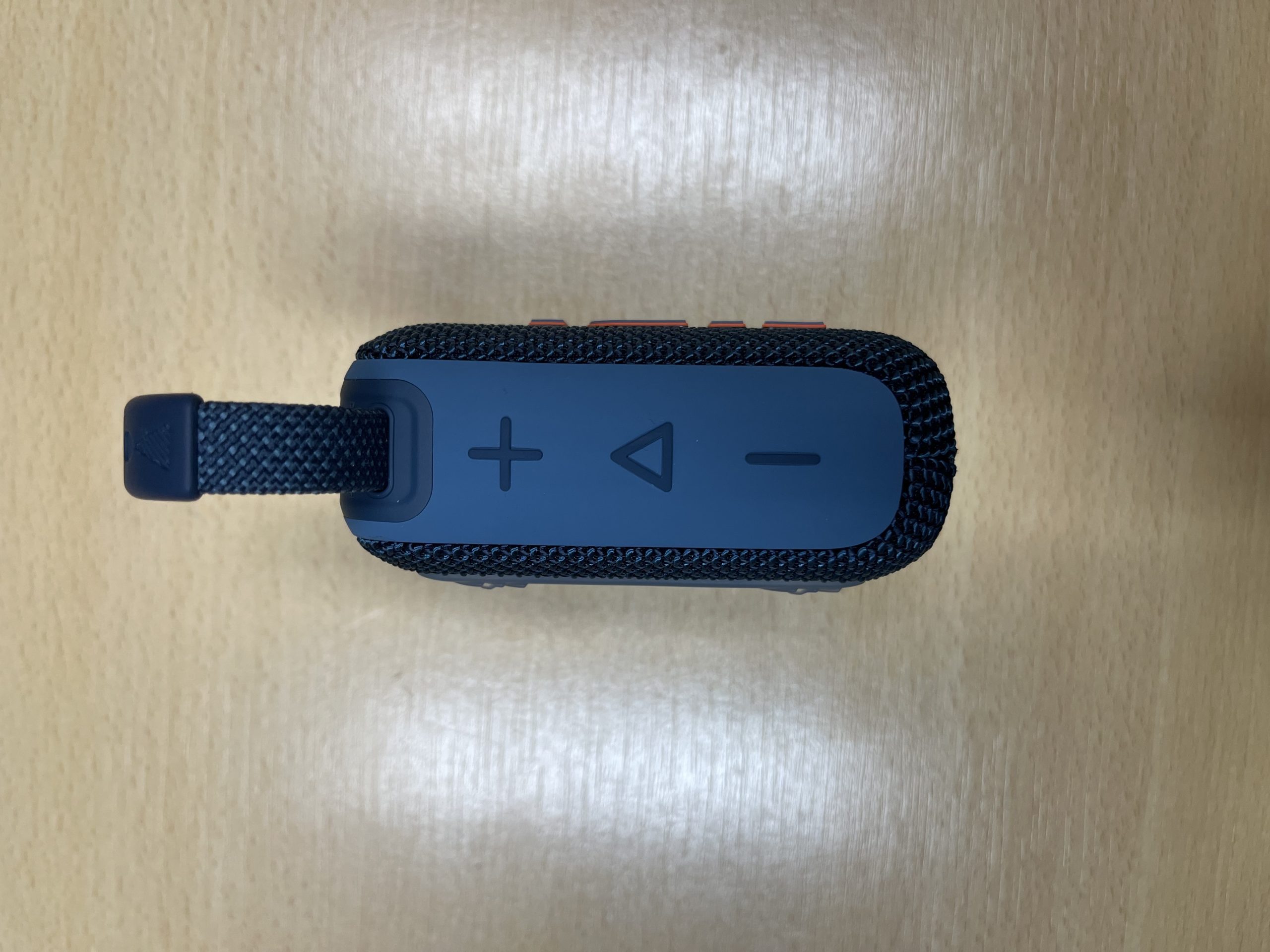
How to pair the JBL Go 4 with your phone
- Turn it on. Press the Power button on the side panel.
- Enter pairing mode. Press the Bluetooth button (the rune-shaped icon) on the same panel.
- Turn on Bluetooth on your phone. Open Settings > Bluetooth (iPhone) or Settings > Connected devices > Pair new device (Android).
- Select “JBL Go 4”. When the phone shows it as connected, start playing audio.
- Optional: open the JBL app. JBL now lists the Go 4 among the speakers moved from the JBL Portable app to the JBL ONE app (see JBL’s migration note). Use the app for firmware updates, EQ, Playtime Boost and battery status.
Pairing a second phone or a laptop: press the Bluetooth button again to make the speaker discoverable, then select it on the new device. JBL’s spec sheet does not list multipoint, so do not expect two phones to stay connected at once. Disconnect the first phone if the new one will not connect.
Pairing with a Windows PC or Mac: the steps are the same. On Windows, go to Settings > Bluetooth & devices > Add device > Bluetooth. On a Mac, go to System Settings > Bluetooth. The Go 4 has no microphone, so it shows up only as a speaker, not a headset. JBL confirms it also has no aux input, so Bluetooth is the only way to play audio through it.
Playback controls
| Action | What it does |
|---|---|
| Press + or – | Volume up or down |
| Press Play once | Play or pause |
| Press Play twice | Next track |
| Press Play three times | Previous track (shown in the Quick Start Guide, see note) |
| Hold Play + Volume + for 3+ s (speaker on) | Factory reset |
| Press Auracast | Start or join a multi-speaker link |
Note: the Quick Start Guide shows a triple press for the previous track. However, JBL’s track control article, which covers the Go 2, Go 3 and Go 4 together, says these speakers can only skip forward. If triple-press does nothing on your unit, use your phone to go back a track.
How to reset the JBL Go 4
A factory reset erases all settings and every saved Bluetooth pairing. It is the fix for a speaker that refuses to pair, keeps connecting to the wrong device, or behaves oddly after a firmware update.
- Make sure the speaker is switched on. The reset does not work from off.
- Press and hold Play and Volume + at the same time.
- Keep holding for more than 3 seconds. The speaker turns itself off, which confirms the reset.
- On your phone, open Bluetooth settings and choose Forget (iPhone) or Unpair (Android) for “JBL Go 4”. If you skip this step, the phone will try to reuse the old pairing, and that often fails.
- Turn the speaker on, press Bluetooth and pair it again from scratch.
The printed Quick Start Guide says to hold the two buttons for more than 2 seconds, while JBL’s support article says more than 3 seconds. Holding for 4–5 seconds covers both.
Do not use the Go 3 method. On the Go, Go 2, Go 3 and Go Essential, the reset is Volume + and Bluetooth for more than 10 seconds. The Go 4 and Go 5 use Volume + and Play instead, so many older guides and videos give the wrong combination.
How to check the JBL Go 4 battery
The Go 4 has no row of battery bars. It has just one small LED on the button side panel, and JBL documents two states for it:
| LED | Meaning per JBL | What to do |
|---|---|---|
| Blinking red (not plugged in) | Low battery | Charge soon. Playback will stop when the cell runs out. |
| Solid red (plugged in) | Charging | Leave it connected. A full charge takes about 3 hours. |
| LED off (plugged in, after charging) | Not shown in JBL’s guide | Usually means charging has finished. Confirm in the app. |
For an actual battery reading, open the JBL app while the speaker is connected. The app shows the speaker’s battery status, and JBL’s August 2026 release notes for the JBL Portable app added a battery notification pop-up.
How to know the JBL Go 4 is fully charged
The Quick Start Guide illustrates only “low battery” and “charging”, not a “full” state. Owners widely report that the red charging LED goes out once the battery is full, but JBL does not state this in the guide. The most dependable checks:
- Timing: JBL rates the 3.23 Wh (850 mAh) battery at about 3 hours to full from a 5 V / 1 A source, so a phone-style USB charger is all you need.
- App reading: connect the speaker and check the battery status in the app.
- LED: when the solid red light switches off while still plugged in, charging is almost certainly done.
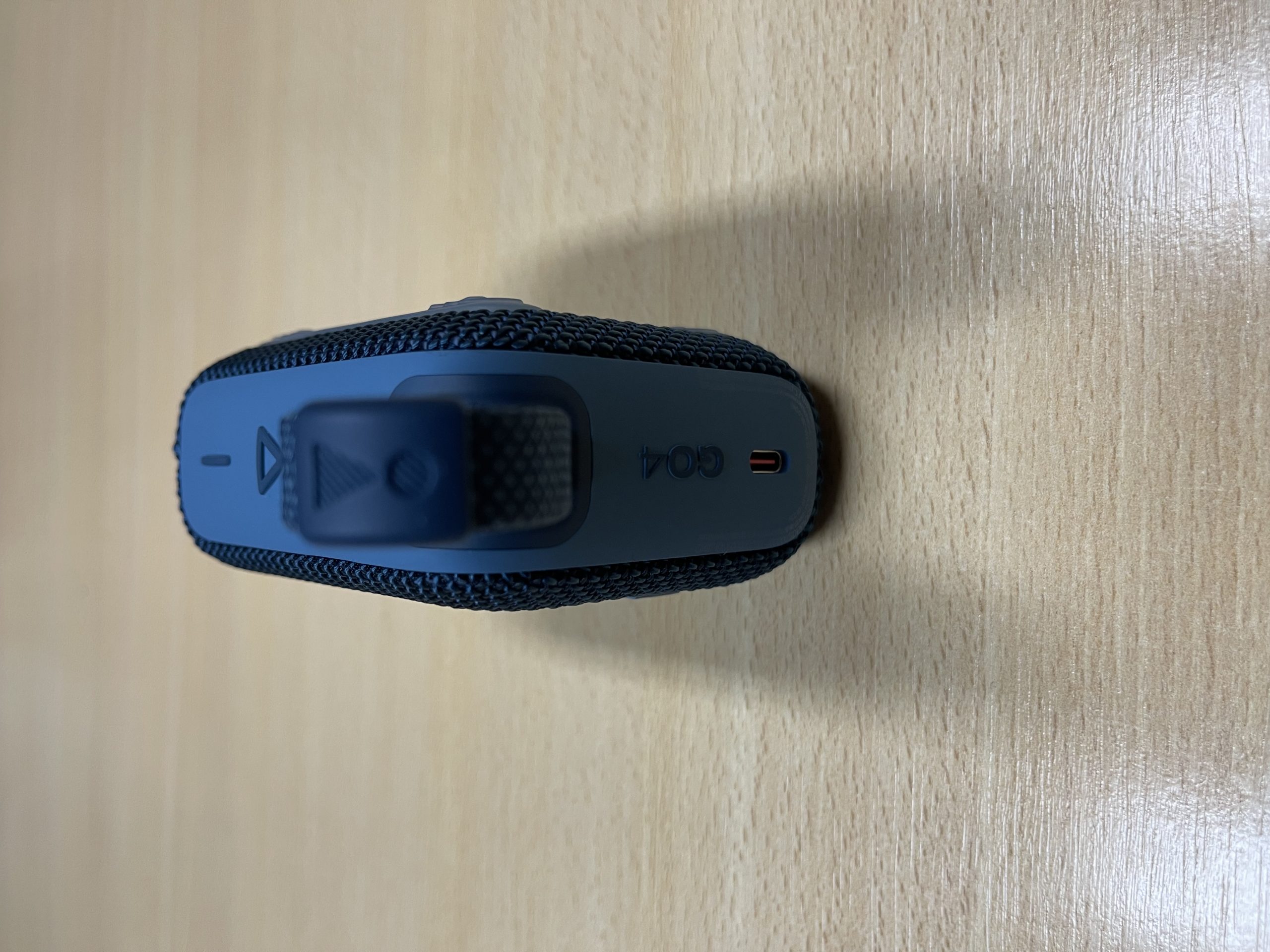
How to charge it properly
- Use the supplied USB-C cable. The box has a USB-A to USB-C cable but no wall adapter.
- Plug it into any USB charger that delivers at least 5 V / 1 A, or into a computer’s USB port. Laptop ports may charge more slowly.
- If the speaker has been in water, dry the port completely before plugging in. JBL’s support page says this specifically. The IP67 rating (1 m of water for up to 30 minutes) applies with nothing plugged in, not while charging.
- Charge at normal room temperature. JBL lists 45 °C (113 °F) as the maximum operating temperature, so do not leave it charging in a hot car.
Battery life is rated at up to 7 hours, depending on volume and content. Playtime Boost, which you switch on in the app, adds up to about 2 hours. JBL says it works by re-tuning the speaker’s sound, so expect the tonal balance to change a little while it is on.
Troubleshooting
| Symptom | Likely cause | Fix |
|---|---|---|
| “JBL Go 4” does not appear on the phone | Speaker not in pairing mode, or already connected to another device | Press the Bluetooth button, turn Bluetooth off and on in nearby devices it used before, and try again within a meter. |
| Phone shows it but connection fails | Stale pairing record | Forget the speaker on the phone, factory reset the Go 4 (Play + Volume +), then pair again. |
| Sound cuts out | Distance, obstacles, Wi-Fi interference | JBL advises keeping a clear line of sight, staying away from Wi-Fi routers, and keeping your body or walls from blocking the signal. |
| Won’t turn on | Battery fully drained | Leave it on the charger for a while before pressing Power again, and check that the red charging LED comes on. |
| No red LED when plugged in | Bad cable or charger, or moisture or lint in the port | Try another cable and charger, dry the port, and check the port for lint with a light. |
| Reset combo does nothing | Speaker was off, or the wrong buttons were used | Turn it on first, then hold Play + Volume + (not Bluetooth) for 4–5 seconds. |
| App can’t find the speaker | Using the old app, or speaker connected to another phone | Install JBL ONE, connect via Bluetooth first, then open the app. |
Keep the firmware current through the app. JBL’s release notes for the Go 4 list several updates, the latest being version 0.7.4.1 in October 2026.
Frequently asked questions
Why is my JBL Go 4 blinking red?
When it is unplugged, a blinking red LED is the low-battery warning. Plug it in. The light should change to solid red, which means it is charging.
How long does a JBL Go 4 take to charge?
About 3 hours from a 5 V / 1 A USB source, according to JBL’s spec sheet. A full charge gives up to 7 hours of play, plus up to 2 more with Playtime Boost on.
Does a factory reset delete my app settings?
Yes. JBL says the reset erases all settings and Bluetooth data, so EQ changes and pairings are gone. You will need to pair again and redo any EQ tweaks.
Can I take calls or use a voice assistant on the JBL Go 4?
No. JBL confirms the Go 4 has no microphone, so it has no speakerphone or voice-assistant function. Calls stay on your phone.
Can I connect two JBL Go 4 speakers?
Yes, using the Auracast button. Two Go 4s can also play in stereo through the app. Our JBL Go 4 review covers the specs, and Auracast linking is explained in its own guide.
Quick checklist
- Pair: Power, then Bluetooth, then pick “JBL Go 4”.
- Reset: speaker on, hold Play + Volume + for 3+ seconds, then forget it on the phone.
- Blinking red means low. Solid red means charging. About 3 hours to full.
- Dry the port before charging after a swim.
- Use the JBL ONE app for battery status, EQ and firmware.
Still deciding if the Go 4 is the right size for you? Our Bluetooth speaker buying guide explains what matters, and the JBL Clip 5 review covers the next step up.