An iPad that won’t charge usually comes down to one of five things: a power source that can’t supply enough current, a charge limit doing its job, a temperature outside the charging range, a bad cable or adapter, or a blocked port. Only after those comes a battery or hardware fault.
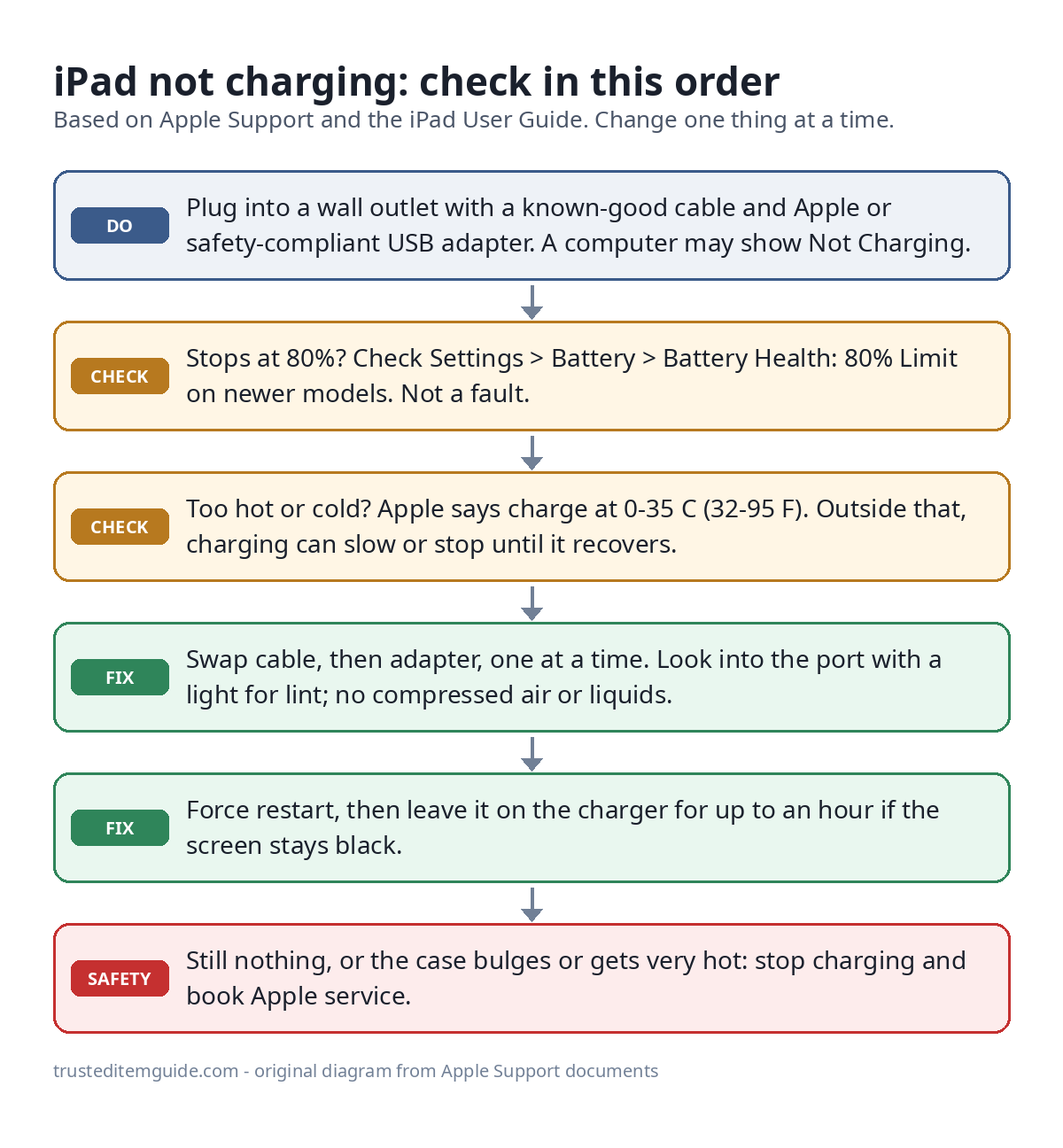
The short version: plug the iPad into a wall outlet, not a computer, using a cable and USB power adapter you know work. A lightning bolt on the battery icon, or a large battery icon on the Lock Screen, means it’s charging. If it stops at 80%, open Settings > Battery > Battery Health and check whether 80% Limit is on. If the iPad is hot or cold, let it reach room temperature. Then swap the cable and the adapter one at a time, check the port for lint, and force restart. If the screen is black, leave it on the charger for up to an hour before deciding it’s dead. Still nothing? Book a repair with Apple.
What you need
- A wall outlet you know is live (test it with a lamp or phone charger)
- A second charging cable and, ideally, a second USB power adapter
- A flashlight to look into the charging port
- Your iPad’s connector type: newer models use USB-C, older ones use Lightning. Apple’s USB-C iPad article lists every USB-C model, from the iPad (10th generation) and iPad (A16) to the current iPad Air, mini and Pro.
Step-by-step fix
- Use a wall outlet first. Apple’s iPad charging article lists four valid power sources: a USB power adapter in a working outlet, a USB 2.0 or later port on a computer that is on, a powered USB hub or Apple-certified accessory, and a compatible Magic Keyboard that has power. The wall adapter is the most dependable of the four. The iPad User Guide explains that if a Mac or Windows PC can’t provide enough power, Not Charging appears in the status bar. It also warns that a computer that is switched off can drain the iPad instead of charging it.
- Confirm it’s really not charging. Look for the lightning bolt on the battery icon. On a black screen, a large battery icon on the Lock Screen also means power is getting in. To see the exact number, turn on the battery percentage in Settings > Battery.
- Rule out the 80% Limit. If the iPad charges normally but stops around 80%, that’s probably a setting. Per Apple’s battery maintenance article, the 80% Limit is available on iPad Pro (M4) and later, iPad Air (M2) and later, iPad mini (A17 Pro) and iPad (A16). When it’s on, charging stops at about 80% and resumes only after the battery drops to 75%. Turn it off under Settings > Battery > Battery Health. According to Apple’s charge limit page, the iPad will still charge to 100% now and then to keep its percentage reading accurate.
- Check the temperature. Apple’s temperature article gives an operating range of 0 to 35°C (32 to 95°F) ambient. Above it, charging slows or stops; in the cold, the iPad might not charge or could stop charging. The iPad User Guide calls this Thermally Limited Charging and describes a Charging On Hold notice on the Lock Screen. It can’t be switched off. Move the iPad out of the sun or a hot car, take off a thick case if it warms up on the charger, and let a cold iPad warm up gradually indoors.
- Swap the cable, then the adapter. Change one part at a time so you know which was faulty. Look for kinks, frayed ends or a bent connector. Apple says a Mac USB-C adapter or a third-party adapter is fine if it complies with applicable safety standards, and its power adapter guide warns that non-compliant adapters could pose a risk of death or injury. Recent iPads shipped with a 20W USB-C adapter, but in some countries the box has no charger at all.
- Inspect the port. Shine a light into the USB-C or Lightning port. Pocket lint packed at the back can stop the plug from seating fully, so it clicks in loosely or charges only at an angle. Apple’s cleaning guide rules out compressed air, aerosol sprays and liquids on iPad, and says to keep moisture out of openings. Apple doesn’t describe a tool for clearing debris from the port, so if you see a packed plug of lint, let an Apple Store or authorized repair shop remove it rather than digging with metal.
- Force restart. A frozen iPadOS can stop charging even with good hardware. On an iPad without a Home button, press and quickly release the volume button nearest the top button, press and quickly release the other volume button, then press and hold the top button until the iPad restarts. On an iPad with a Home button, press and hold the top (or side) button and the Home button together until the Apple logo appears.
- Give a dead iPad time. A fully drained battery may show nothing at first. Apple’s article for an iPad that won’t turn on says you might need to charge for up to an hour. Leave it on a wall adapter, untouched, for the full hour.
- Get it serviced. If none of this works, use Apple’s Get Support page. Apple says iPad batteries are designed to keep 80% of their original capacity at 1,000 complete charge cycles, and battery service is covered by the one-year warranty plus local consumer law.
Symptom, likely cause and fix
| What you see | Likely cause | What to do |
|---|---|---|
| “Not Charging” in the status bar while connected to a computer | The computer’s port can’t supply enough power | Use a wall adapter; keep the computer on if you must use it |
| Battery drops while plugged into a laptop that’s asleep or off | A computer that’s off can drain the iPad | Wake the computer, or switch to a wall outlet |
| Charging stops at 80% | 80% Limit (newer models), or heat | Check Settings > Battery > Battery Health; cool the iPad |
| Full charge, then hovers at 95-100% | Normal: Apple says charging stops at full and resumes below 95% | Nothing to fix; safe to leave plugged in overnight |
| Charging On Hold, or very slow charging when warm | Thermally Limited Charging | Move to a cooler spot, remove the case, wait |
| Won’t charge in a cold car or garage | Battery below the 0°C (32°F) operating range | Warm it indoors gradually, then charge |
| Charges only when the cable is held at an angle | Lint in the port or a worn cable | Try another cable; have the port cleaned |
| Works with one adapter but not another | Faulty or underpowered adapter | Use the working adapter; retire the bad one |
| Black screen, no battery icon after an hour on a wall charger | Deeply drained battery or a hardware fault | Try another cable and adapter, then book Apple service |
Where Apple’s documents differ
Two Apple pages give different temperature figures, and both are right for different purposes. The temperature article sets the operating limits at 0-35°C (32-95°F) and storage at -20 to 45°C (-4 to 113°F). The battery maintenance article calls 16-22°C (62-72°F) the ideal comfort zone, and says charging above 35°C (95°F) can permanently reduce battery lifespan. Treat the first as hard limits and the second as the target. An iPad charging in a 30°C room is within range but will age faster than one charging at 20°C.
Charging tips that prevent the problem
- Use a higher-wattage USB-C adapter if you have one. Apple’s USB-C article says a Mac laptop adapter can charge a USB-C iPad faster.
- Know which way power flows. A USB-C iPad can power an iPhone, an Apple Watch charger or another USB-C iPad. Connect two devices and one charges the other, so check that the iPad is the one being charged.
- Leaving it plugged in is fine. Apple says the iPad stops charging when full, so overnight charging is safe. On supported models, the 80% Limit reduces the time the battery spends full, which Apple says reduces wear.
- Keep it out of heat. A dashboard, a sunny windowsill or a pillow on the charger all push it past 35°C.
Laptops follow similar rules: our guide to laptop battery drain on Windows 11 covers charge limits on Dell, HP and Lenovo. For a small USB-C device with its own charging quirks, see how to charge and check the battery on a JBL Go 4.
Battery safety
Stop charging and unplug the iPad if the case bulges, the screen lifts at an edge, it gets too hot to hold, or you smell something burning. Don’t press on a swollen battery, puncture it or try to open the iPad. Put it on a non-flammable surface away from anything that can burn, and contact Apple or an authorized service provider. Use only adapters that meet applicable safety standards; Apple’s adapter guide warns that non-compliant ones risk death or injury.
Frequently asked questions
Why does my iPad say Not Charging when it’s plugged in?
Usually because it’s connected to a computer that can’t supply enough power. Apple’s iPad User Guide says that’s when the message appears. Move it to a USB power adapter in a wall outlet. If you see it on a wall adapter, try another cable and adapter.
Why won’t my iPad charge past 80%?
On iPad Pro (M4) and later, iPad Air (M2) and later, iPad mini (A17 Pro) and iPad (A16), check Settings > Battery > Battery Health for 80% Limit. On any model, heat can also hold charging back.
Can I charge my iPad with an iPhone charger?
Yes. Apple says iPhone and iPad can share compatible adapters. A small adapter, such as the 5W cube that came with older iPhones, will work but takes much longer than a 20W USB-C adapter.
How long should I charge a dead iPad before it turns on?
Apple says up to an hour. Use a wall adapter rather than a computer, and don’t keep pressing buttons in the meantime.
When to contact Apple
- No charging indicator after an hour on a known-good wall adapter and cable
- Charging works only at an angle with every cable you try
- Battery drains or dies far faster than it did a few months ago
- Any swelling, scorching smell or excessive heat: stop using it first