A Windows 11 laptop that drains fast usually has one of four problems: an app working in the background, display and power settings tuned for performance, a laptop that keeps waking up while asleep, or a worn battery. Each one has a built-in Windows check.
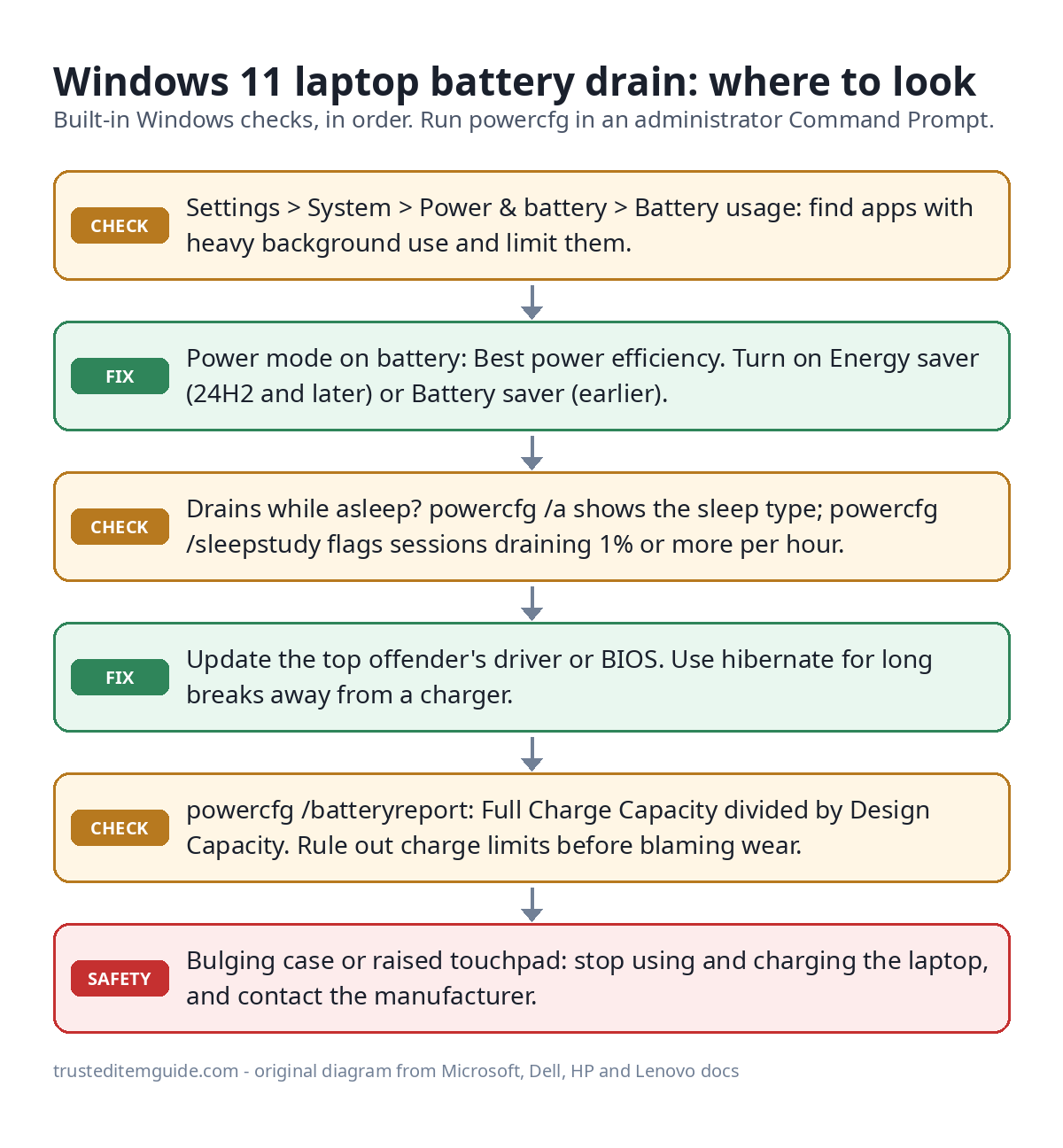
The short version: open Settings > System > Power & battery > Battery usage and look for an app with high background use. Set Power mode to Best power efficiency on battery, and turn on Energy saver (Windows 11 24H2 and later) or Battery saver (earlier versions). If the battery drops overnight with the lid closed, run powercfg /sleepstudy. If runtime is short even with sensible settings, run powercfg /batteryreport and compare Full Charge Capacity with Design Capacity. If it’s far below the design figure, no setting will bring the old runtime back.
What you need
- An administrator Command Prompt for powercfg (right-click Command Prompt, Run as administrator)
- Your Windows version, from Settings > System > About (menu names changed at 24H2)
- Battery percentages before and after a work session and an overnight sleep
Fix drain while you’re using the laptop
- Find the app. Go to Settings > System > Power & battery > Battery usage. Under Battery usage per app, look for heavy background use. If the app supports it, select More options > Manage background activity and set Let this app run in the background to Power optimized (recommended) or Never. Never also stops its notifications, Microsoft notes. Apps without this control can be closed or disabled in Task Manager’s Startup tab.
- Set the power mode. On the Power & battery page, under Power mode, set the On battery option to Best power efficiency. If it’s locked, Energy saver is on or a custom plan is active; for the latter, Microsoft says to select Balanced in Control Panel > System and Security > Power Options.
- Turn on Energy saver or Battery saver.
- Windows 11 24H2 and later: on the Power & battery page, expand Energy saver and set Turn energy saver on when battery level is at, or switch Always use energy saver on. It’s also in Quick Settings. Per Microsoft Learn, it dims the screen 30% (optional) and drops transparency effects; on low battery it also blocks most background apps and non-critical update downloads.
- Before 24H2: on the same page, expand Battery saver, then pick the level it turns on at or select Turn on now. Microsoft’s battery tips page labels this group “24H1 and earlier”.
- Dim the display and lower the refresh rate. Set brightness in Settings > System > Display; under Display > Advanced display, choose a lower refresh rate, or turn on Dynamic refresh rate if your screen supports it. Microsoft says dark mode saves power too, especially on OLED screens.
- Shorten the timeouts. On the Power & battery page, open Screen and sleep. Newer builds call it Screen, sleep, & hibernate timeouts. Shorten the on-battery screen and sleep times. Microsoft’s current defaults for Modern Standby laptops are 3 minutes each. On 24H2 and later, Energy recommendations on the same page offers Apply all.
- Restart, and update the BIOS and drivers. Dell’s drain guide starts with BIOS, chipset and power-management driver updates.
- Clean boot. Dell’s guide disables non-Microsoft services (msconfig, Services tab, Hide all Microsoft services) and all startup items, then compares drain. If it improves, re-enable in groups to find the culprit, then return msconfig to Normal startup.
Fix drain while the laptop is asleep
Many current laptops use Modern Standby (S0 low power idle) instead of S3 sleep. Microsoft explains that the system stays technically on while “asleep”: desktop apps are paused, but devices, drivers and some background tasks can still wake it.
- Check your sleep type. Run powercfg /a. “Standby (S0 Low Power Idle)” means Modern Standby, sometimes followed by “Network Connected” or “Network Disconnected”. “Standby (S3)” means traditional sleep. Microsoft says switching between them takes a Windows reinstall, not a BIOS setting.
- Run a sleep study (Modern Standby only). powercfg /sleepstudy saves sleepstudy-report.html in the current folder and covers three days by default. Add /duration 7 for a week (maximum 28). Per the SleepStudy documentation, a sleep session is red if it drains 1% or more per hour or spends under 80% of its time in the deepest idle state, and yellow at 0.33-1% per hour. Each one lists its five “top offenders”.
- Fix the top offender. For a device such as a network adapter, install the maker’s current driver and BIOS; for software, update or remove it. Long red sessions matter most.
- Find what wakes it or keeps it awake. These commands are listed in Microsoft’s powercfg reference:
- powercfg /lastwake shows what caused the last wake.
- powercfg /waketimers lists active wake timers.
- powercfg /requests shows apps and drivers blocking sleep. Run it if the laptop comes out of a bag warm.
- To stop a device waking the laptop, run powercfg /devicequery wake_armed, then powercfg /devicedisablewake “name” with the exact name it listed.
- Hibernate for long breaks. Microsoft recommends it when you can’t charge for a while. Go to Control Panel > System and Security > Power Options > Choose what the power buttons do. Select Change settings that are currently unavailable, tick Hibernate under Shutdown settings, and save. The same page can set When I close the lid to Hibernate on battery. If the option is missing, run powercfg /hibernate on; powercfg /a also tries to explain unavailable sleep states.
- Or make sleep turn into hibernation automatically. powercfg /change hibernate-timeout-dc 180 sets the on-battery hibernate timeout to 180 minutes. Microsoft describes this timeout as how long after sleep the system wakes and hibernates. If your Settings page shows a hibernate option under Screen, sleep, & hibernate timeouts, you can set it there instead.
How to read the battery report
Run powercfg /batteryreport. The Command Prompt window shows where it saved battery-report.html; open that file in a browser. Microsoft suggests starting with Installed battery, Recent usage and Battery usage.
- Installed batteries: divide Full Charge Capacity (what it holds now) by Design Capacity (what it held new). 41,000 mWh ÷ 54,000 mWh = 76%, so a full charge lasts about three-quarters as long as it did when new.
- Recent usage: state changes with the remaining capacity at each one. Compare capacity at sleep and at wake. This also works on S3 laptops, which can’t use sleep study.
- Battery capacity history: a gradual slide over months is normal ageing. A sudden step down points to recalibration or a charge-limit setting.
Rule out a charge limit before blaming the battery. HP says its default Let HP Manage My Battery Health setting reduces available full charge capacity over time on purpose, and Maximize Battery Health Management caps it at 80% of design. A Lenovo ThinkPad guide says that after long periods of light use, full capacity may not come back until you discharge to about 20% and recharge completely. A reading above 100% on a newer battery is expected, according to Microsoft.
When to replace it: Microsoft gives no threshold, and Dell’s own articles disagree. Its drain article calls a battery significantly degraded below 40% of design capacity. Its troubleshooting article suggests replacement under 50%, or when Dell’s health status shows “Fair” or “Poor”. HP’s UEFI battery test (esc at power-on, then f2, then Component Tests > Power > Battery) reports Passed, Calibrate, Weak or Very Weak, or Replace. Trust your maker’s diagnostic over a single number.
Symptom, likely cause and fix
| What you see | Likely cause | Fix |
|---|---|---|
| One app high in Battery usage, mostly background | Sync client, updater, browser | Background activity to Power optimized or Never; close or remove it |
| Fast drain with nothing heavy open; bright, high-refresh screen | Display and power mode | Lower brightness and refresh rate; Best power efficiency; Energy saver |
| Loses 10% or more overnight, lid closed | Modern Standby activity from a device, driver or app | powercfg /sleepstudy; update the top offender; hibernate for long breaks |
| Warm in the bag, never seems to sleep | Power request or wake source | powercfg /requests, /lastwake, /waketimers; disable device wake |
| Short runtime with good settings | Battery wear | Battery report, then maker’s diagnostic |
| Stops charging at 55-60%, about 80%, or a set level | Charge limit (Lenovo Conservation mode, Dell Primarily AC Use or Custom, HP Battery Health Manager) | Not a fault; change the mode before a trip |
| Percentage jumps or freezes; shuts off with charge left | Fuel gauge out of calibration or failing battery | Maker’s calibration (HP UEFI diagnostics, Dell discharge-recharge cycle), then retest |
| “Charging slowly” or discharging while plugged in | Underpowered or incompatible charger or cable, wrong port | Maker’s charger in the charging port; Microsoft says charging asleep or off is faster |
| Raised touchpad, warped base, laptop rocks on a desk | Swollen battery | Stop using it; see safety below |
Charge limits by brand
A charge limit slows battery ageing but cuts runtime per charge, so it suits laptops that rarely leave the desk.
- Dell: press F2 at power-on, then go to Power Management > Battery Charge Configuration (location varies by model) or use Dell Power Manager. Modes are Adaptive, Standard, ExpressCharge, Primarily AC Use and Custom. Dell says Primarily AC Use limits charge to 50-80%.
- HP business notebooks: press f10 at power-on, then go to Advanced > Power Management Options > Battery Health Manager. HP Intelligent Charging limits the battery to 80% after it has sat at high charge for several days, and HP says it can’t be disabled.
- Lenovo: turn on Conservation mode in Lenovo Vantage or Lenovo PC Manager. Lenovo’s current user guides say it holds the battery at 75-80%. On older IdeaPads it stops at 55-60%. ThinkPads offer a custom charge threshold in Vantage.
An old laptop used as an always-on home server keeps its battery at high charge around the clock. A charge limit helps, though a low-power box may suit the job better: our Raspberry Pi vs mini PC comparison covers always-on use, and the Celeron N3350 mini PC is a fanless 6 W TDP option.
Battery safety
Dell and Microsoft warn about swollen batteries. Signs include a bulge under the chassis, a raised or stiff touchpad, a warped base, or a laptop that won’t sit flat. If you see any of them, stop using the laptop and unplug the charger. Don’t press, puncture or pry out the battery. Place the laptop on a non-flammable surface away from heat and contact the manufacturer. Never put it in household trash. Heat also causes permanent capacity loss, so avoid using or charging the laptop somewhere hot. Lenovo’s guides recommend charging between 10°C and 35°C (50-95°F).
Frequently asked questions
How much battery should a laptop lose overnight in sleep?
Under Microsoft’s sleep study color codes, 1% per hour or more is red and 0.33-1% per hour is yellow. Losing 8% or more over an eight-hour night is worth investigating. Below about 2.5% over eight hours is in the green range.
Should I keep my laptop plugged in all the time?
Microsoft suggests keeping the battery between roughly 20% and 80% when possible, and turning on smart charging if your laptop supports it. For a laptop that stays on a desk, turn on the maker’s charge limit.
Does Energy saver slow the laptop down?
It can: it locks the power mode and limits background work. Microsoft still recommends keeping it on all the time if battery life matters most. You can switch it off in Quick Settings when you need full speed.
Quick checklist
- Battery usage per app: anything heavy in the background?
- Power mode on battery: Best power efficiency
- Energy saver (24H2+) or Battery saver (earlier) set to turn on automatically
- Brightness and refresh rate lowered, timeouts short
- Overnight drain: powercfg /a, then powercfg /sleepstudy
- Battery report: Full Charge ÷ Design Capacity, after ruling out a charge limit
- Swelling: stop and contact the manufacturer