The Amazon Fire TV Stick 4K is a stick-style streaming player that plugs directly into an HDMI port and turns almost any 4K television into a fully loaded smart TV. It sits in the middle of Amazon’s Fire TV lineup: above the HD-only sticks and below the pricier Fire TV Stick 4K Max, but crucially it still checks every major picture-quality box. For a lot of households, it hits the sweet spot between price and features.
What makes the current generation (2nd gen, released in 2023) notable is how much premium technology has trickled down to a mainstream price point. This is a 4K device with Dolby Vision, HDR10, HDR10+ and HLG, Dolby Atmos audio, Wi-Fi 6, and an Alexa Voice Remote with TV controls built in. This guide covers the official specifications, how the stick compares with the 4K Max, and, further down, a setup checklist and a troubleshooting table built from Amazon’s own support documentation.
Specifications at a glance
The figures below come from Amazon’s official Fire TV device specifications for developers, which list the 2nd-gen stick and the 4K Max side by side.
| Feature | Fire TV Stick 4K (2nd gen, 2023) | Fire TV Stick 4K Max (2nd gen, 2023) |
|---|---|---|
| Chip (SoC) | MediaTek MT8696D | MediaTek MT8696T |
| CPU | 4x ARM Cortex-A55 up to 1.7 GHz | 4x ARM Cortex-A55 up to 2.0 GHz |
| GPU | GE9215 up to 650 MHz | GE9215 up to 850 MHz |
| RAM | 2 GB LPDDR4 | 2 GB LPDDR4 |
| Storage | 8 GB | 16 GB |
| Wi-Fi | Wi-Fi 6, dual-band 2.4/5 GHz | Wi-Fi 6E, tri-band 2.4/5/6 GHz |
| Bluetooth | 5.2 + BLE | 5.2 + BLE |
| Video output | HDMI 2.1 output with ARC input support | HDMI 2.1 output with ARC input support |
| HDR formats | Dolby Vision, HDR10, HDR10+, HLG | Dolby Vision, HDR10, HDR10+, HLG |
| Audio | Dolby Atmos, Dolby Digital / Digital Plus, DTS and DTS-HD pass-through, Dolby MAT transcoding | Same as the 4K |
| Operating system | Fire OS 8 | Fire OS 8 |
The table makes one point clear that many comparisons get wrong: both sticks have the same 2 GB of RAM. The 4K Max’s advantages are a faster CPU and GPU, double the storage, and Wi-Fi 6E.
Picture quality: every HDR format that matters
The Fire TV Stick 4K streams 4K Ultra HD, and its standout spec is HDR breadth. It supports Dolby Vision, HDR10, HDR10+, and HLG. That is the complete set of formats most viewers will ever encounter, which means the stick can pick the best version of an image that a given app and TV both support. Dolby Vision and HDR10+ both use dynamic metadata to tune brightness scene by scene, and having both on board removes any guesswork about format compatibility.
This is a genuine differentiator against cheaper streamers and some rival budget devices that skip Dolby Vision. In practice it means that when you open a Dolby Vision title on a Dolby Vision TV, you get that format; when you open an HDR10+ title on a compatible set, you get that one instead. The device is built to match the source to the display rather than forcing everything into a single HDR standard.
Under the hood, a quad-core processor running at up to 1.7 GHz keeps the interface and app launches moving along. It is not the fastest chip Amazon ships, the Fire TV Stick 4K Max runs at up to 2.0 GHz, but for opening apps, browsing, and playing back 4K HDR streams it is well matched to the task. The 8 GB of internal storage is used by the system and installed apps rather than downloaded media; if you install a lot of large apps or games, the Max’s 16 GB is the more comfortable choice.
Sound: Dolby Atmos and flexible pass-through
Audio support is strong for a device this size. Amazon lists Dolby Atmos, Dolby Digital and Dolby Digital Plus, plus DTS and DTS-HD pass-through, so compatible audio can travel over HDMI to a soundbar or AV receiver that decodes it. The stick’s HDMI output with ARC input support helps route audio cleanly within a typical living-room setup.
Getting real Dolby Atmos, of course, depends on the rest of your gear: you need an Atmos-capable soundbar or receiver and content encoded in Atmos. On its own, plugged into a TV’s speakers, you will not hear the object-based height effects, but the stick will not be the bottleneck. If you are pairing it with a compact audio upgrade, our look at the VIZIO V-Series 2.0 sound bar covers an affordable HDMI ARC option, and our guide to building a budget home entertainment setup shows how the pieces fit together.
Fire OS, Alexa, and the remote
Fire OS 8 is the software layer, and it is where opinions divide. On the plus side, app coverage is comprehensive across the major US streaming services, and Alexa integration is deep. The bundled Alexa Voice Remote has a dedicated microphone button for voice search and smart-home commands, plus TV power and volume buttons and app shortcut buttons, so it can act as your primary remote and control a compatible television and even smart-home devices like cameras and lights.
The trade-off is that the home screen leans heavily on Amazon’s own content and Prime Video, with large promotional banners and rows that surface Amazon’s services first. If you are already a Prime member, that integration is convenient; if you are not, it can feel like the interface is steering you. This is the core philosophical difference between Fire TV and a more neutral platform, and it is worth weighing before you buy.
Alexa itself is a real perk for smart-home households. You can ask the remote to play a specific show, launch an app, check the weather, dim the lights, or pull up a compatible security camera feed on the TV. For anyone already invested in Amazon’s Echo ecosystem, the Fire TV Stick 4K slots in as another Alexa endpoint rather than a standalone box.
Connectivity
The stick uses Wi-Fi 6 on the 2.4 and 5 GHz bands, which helps on busy home networks where many devices compete for airtime. The 4K Max adds the 6 GHz band (Wi-Fi 6E), which only matters if your router also supports 6 GHz. Bluetooth 5.2 handles the remote and lets you connect Bluetooth headphones or speakers for private listening. There is no Ethernet port on the stick itself; Amazon sells a separate Ethernet adapter for wired connections.
Setup checklist (the steps that prevent most problems)
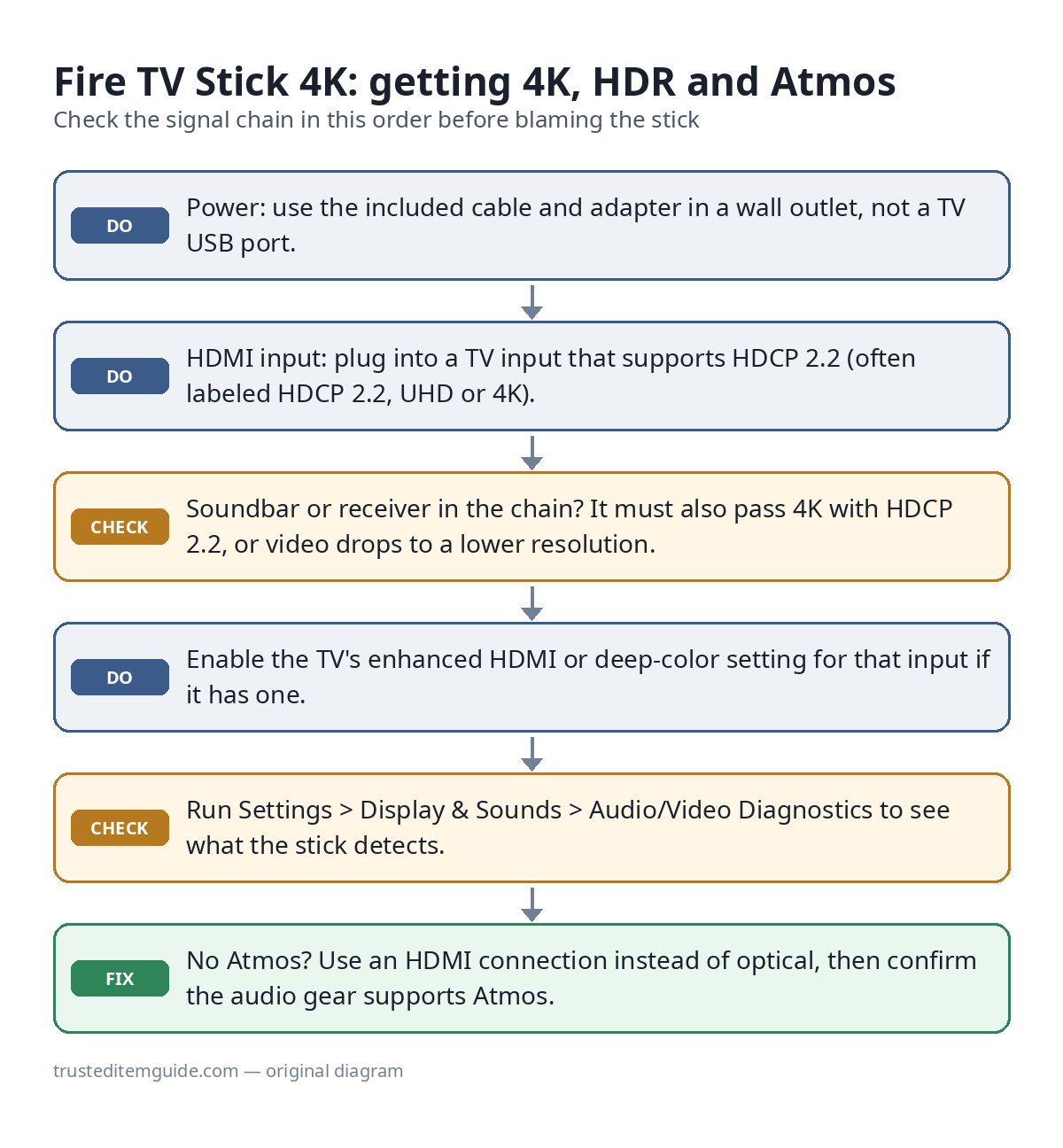
Most complaints about the Fire TV Stick 4K, such as no 4K option, no HDR, no Atmos, or a stick that keeps rebooting, trace back to the connection rather than the device. Amazon’s support pages point to the same handful of causes, so it pays to get these right the first time:
- Pick the right HDMI input. For 4K, the TV input must support the HDCP 2.2 copy-protection standard. Amazon notes that not every HDMI port on a 4K TV does; inputs labeled “HDCP 2.2”, “UHD”, “4K” or “MHL” usually do. Check your TV’s manual if the ports are unlabeled.
- Power it from the wall. Use the included cable and power adapter plugged into an outlet. A TV’s USB port often cannot supply enough power, and Fire TV shows a low-power notification when it detects that.
- Pair the remote. New remotes normally pair automatically. If yours does not, press and hold the Home button for about 10 seconds.
- Join Wi-Fi and sign in with an Amazon account. A Prime membership is not required.
- Run the diagnostics. Go to Settings > Display & Sounds > Audio/Video Diagnostics. It checks what the connected TV and audio gear support (maximum resolution and refresh rate, HDR, Dolby Vision, audio formats) and warns if HDCP 2.2 is not detected.
- If you use a soundbar or AV receiver in the HDMI chain, it must also support HDCP 2.2 and 4K pass-through, or the TV will fall back to a lower resolution.
Troubleshooting table
This table condenses Amazon’s Fire TV help articles on 4K, HDR, surround sound, blank screens and remotes into one place. Menu names are as Amazon documents them for Fire TV streaming players; they can differ slightly on Fire TV smart TVs.
| Symptom | Likely cause | What to do |
|---|---|---|
| No 4K option, or video stuck at 1080p | HDMI input or cable without HDCP 2.2 support; soundbar/receiver in the chain without 4K pass-through | Move the stick to a 4K/HDCP 2.2 input, use a high-speed HDMI cable, then run Audio/Video Diagnostics |
| Dolby Vision or HDR not activating | TV input not in its enhanced/HDR mode, or the TV does not support that format | Check Settings > Display & Sounds > Display > Dynamic Range Settings, check your TV’s manual for an enhanced HDMI or deep-color setting on that input, and confirm the format in Audio/Video Diagnostics |
| No Dolby Atmos or surround sound | Optical connection (cannot carry full surround), audio gear without Atmos support, or a format the receiver cannot decode | Use HDMI instead of optical; connect the stick directly to the soundbar or receiver’s HDMI input and run a second HDMI cable to the TV’s ARC input; try a lower audio format under Display & Sounds |
| Black or blank screen | Wrong TV input, loose HDMI, faulty cable or hub, or insufficient power | Switch the TV to the correct HDMI input, reseat the stick, replace any HDMI cable or hub, and power it from the included adapter in a wall outlet |
| Low-power warning or random reboots | Powered from a TV USB port or a weak third-party adapter | Use the original cable and adapter plugged into a wall outlet |
| Remote does nothing | Dead batteries or lost pairing | Fit fresh batteries, then hold Home for about 10 seconds to re-pair; you can also use the Fire TV phone app as a temporary remote |
| Frozen interface or app | Software hang | Restart: hold Select + Play/Pause for about 5 seconds, or unplug power for a few seconds |
Remote shortcuts worth knowing
- Restart: hold Select and Play/Pause together for about 5 seconds, or go to Settings > My Fire TV > Restart.
- Re-pair the remote: hold Home for about 10 seconds, or add it from Settings > Controllers & Bluetooth Devices > Amazon Fire TV Remotes.
- Factory reset: hold Back and the right side of the navigation ring together for about 10 seconds, or go to Settings > My Fire TV > Reset to Factory Defaults. This removes your account and downloaded content, so treat it as the last step, not the first.
These procedures are summarized from Amazon’s Fire TV help pages, including 4K Ultra HD not working, Dolby Atmos or surround sound not working and resetting a Fire TV device. Amazon updates these pages as Fire OS changes, so check them if a menu name does not match your screen.
Pros and cons
Strengths
- Full HDR support: Dolby Vision, HDR10, HDR10+, and HLG
- Dolby Atmos, Dolby Digital Plus and DTS pass-through over HDMI
- Wi-Fi 6 for steadier 4K streaming on crowded networks
- Alexa Voice Remote with TV power, volume, and app shortcut buttons
- Deep smart-home integration for Echo and Alexa users
- Discreet stick design that hides behind the TV; Bluetooth 5.2 for wireless headphones
Limitations
- Fire OS heavily promotes Amazon and Prime Video content on the home screen
- Slower CPU and GPU and half the storage of the step-up Fire TV Stick 4K Max
- No Ethernet port in the box (wired networking needs a separate adapter)
- Best audio and HDR benefits depend on having compatible TV and sound gear
- Ad-forward interface will not suit viewers who want a neutral platform
Who it’s for (and who should look elsewhere)
The Fire TV Stick 4K is an easy recommendation for Prime members, Alexa and Echo households, and anyone who wants the widest HDR and audio format support at a mainstream price. It is also a smart choice for people upgrading an older or sluggish smart TV who want a feature-complete stick they can hide behind the screen.
If you prefer a cleaner, less commercial interface, the Roku Express 4K+ is the obvious alternative; it is more neutral and simple, though according to Roku’s hardware specifications it supports HDR10, HDR10+ and HLG but not Dolby Vision. We compare the two directly in Roku Express 4K+ vs Fire TV Stick 4K. Shoppers who want the fastest Fire TV stick should look at the 4K Max, while Google TV devices suit those tied into the Google and Android ecosystem. For a broader comparison, see our roundup of the best streaming devices for home entertainment in 2026.
Frequently asked questions
What is the difference between the Fire TV Stick 4K and the 4K Max?
Both stream 4K with the same HDR formats, the same audio support and the same 2 GB of RAM. The 4K Max has a faster CPU (up to 2.0 GHz versus 1.7 GHz) and GPU, 16 GB of storage instead of 8 GB, and tri-band Wi-Fi 6E. The standard 4K covers the same core picture and sound features for less, which is why it is the better value for most buyers.
Why can’t I select 4K or Dolby Vision?
Usually the TV input is the problem, not the stick. Make sure the stick is in an HDMI input that supports HDCP 2.2, use a high-speed HDMI cable, turn on the TV’s enhanced HDMI or deep-color setting for that input if it has one (the name varies by brand), and run Settings > Display & Sounds > Audio/Video Diagnostics to see what the stick detects.
Do I need an Amazon Prime subscription to use it?
No. You need a free Amazon account to set it up, but you can install and use any streaming app, including non-Amazon services. Prime membership simply makes the built-in Prime Video integration more useful.
Can I power it from my TV’s USB port?
Amazon recommends the included cable and adapter plugged into a wall outlet. Many TV USB ports do not supply enough power, which can cause low-power warnings, blank screens or reboots.
Will it work with a non-4K TV?
It will function on a 1080p TV and output at that resolution, but you would be paying for 4K and HDR features you cannot use. On an HD-only set, one of Amazon’s cheaper HD Fire TV sticks is the more sensible choice.
Bottom line
The Amazon Fire TV Stick 4K packs a remarkably complete feature set into an inexpensive stick: every major HDR format including Dolby Vision, Dolby Atmos audio, Wi-Fi 6, and a capable Alexa remote with TV controls. The main caveat is Fire OS itself, which pushes Amazon’s content hard and will not appeal to everyone. Set it up on an HDCP 2.2 input with wall power and run the built-in diagnostics, and most of the common problems never appear. Those who prize a neutral, ad-light interface should weigh the Roku alternative first.