The Roku Express 4K+ is a compact, set-top streaming player aimed at people who want 4K HDR picture quality without paying for a premium box. It sits in Roku’s budget tier, one step above the standard HD Express, and it pairs a small puck-style unit with a Roku Voice Remote that can also control your TV. If you have an older 4K television with a clunky built-in smart platform, or a set with no smart features at all, this is the kind of device that quietly modernizes the whole experience for very little money.
On paper, the appeal is straightforward: real 4K resolution, wide HDR support, the mature Roku operating system, and a remote that most households can pick up and use without a manual. It is a previous-generation model now (Roku’s lineup has since shifted toward stick-style players), so it often turns up at clearance prices, which only strengthens its budget argument. Below is a closer look at what the specifications actually deliver and where the compromises sit, followed by a setup checklist and a troubleshooting table built from Roku’s own support articles.
Specifications at a glance
The hardware figures come from Roku’s official hardware specifications for developers; the box contents and power guidance come from Roku’s Express 4K+ setup article.
| Feature | Roku Express 4K+ |
|---|---|
| Model numbers | 3941 family; Roku’s developer page lists 3940X2, 3941X2 and 3942X2 |
| CPU / RAM | ARM Cortex-A55 / 1 GB |
| Video playback | Up to 4K at 60 fps with HDR; also outputs 1080p and 720p |
| Menu (UI) resolution | 1080p at 60 fps (the home screen is not drawn in 4K; video is) |
| HDR formats | HDR10, HDR10+ and HLG (no Dolby Vision) |
| HDMI requirement | 4K and HDR need an HDMI input that supports HDCP 2.2 |
| Wi-Fi | 802.11ac dual-band MIMO (Wi-Fi 5) |
| Wired network | Optional, through a separate Ethernet adapter |
| Remote | Roku voice remote with TV power, volume and mute |
| Operating system | Roku OS |
| Power | USB power cable plus wall adapter (included) |
| In the box | Player, voice remote, Premium High Speed HDMI cable, power adapter with USB cable, optional adhesive strip |
Two lines in that table explain most of the confusion people run into. The menus are drawn at 1080p even on a 4K TV, so a slightly soft home screen is normal and says nothing about video quality. And the HDCP 2.2 requirement, not the player, is behind most “no 4K option” complaints.
Video and audio: 4K with HDR10+, but no Dolby Vision
The headline capability is 4K streaming at up to 60 frames per second over HDMI. That covers the vast majority of 4K content on the major services, and it means the Express 4K+ can drive a modern 4K panel at full resolution rather than upscaling from 1080p. For anyone moving up from a 1080p streamer or a sluggish smart-TV interface, the jump to native 4K is the most visible upgrade.
On the HDR side, the device supports HDR10, the dynamic-metadata format HDR10+, and HLG, the broadcast-oriented format used by some live streams. HDR10+ is the meaningful one: it adjusts brightness and tone scene by scene, which can give a more nuanced image than static HDR10 on compatible TVs and titles. The notable gap is Dolby Vision. Roku reserves Dolby Vision for its higher-end players, so if you specifically want that format, this is not the model to buy. In practice, most streaming apps that offer Dolby Vision also offer an HDR10 or HDR10+ stream, so you still get a high-dynamic-range picture, just not Dolby’s version of it.
Audio is handled through the HDMI connection to your TV or receiver, and the Roku platform passes through common surround formats to compatible equipment. This is a picture-first device rather than an audiophile centerpiece, so pairing it with even a modest soundbar makes a bigger difference than any setting on the box itself. If you are building out the audio side, our guide to the VIZIO V-Series 2.0 sound bar covers a compact option that connects to the same TV over HDMI ARC, and our guide to building a budget home entertainment setup shows how player, TV and sound fit together. If a soundbar or receiver sits between the player and the TV, remember that it too must support HDCP 2.2 for 4K to work.
The Roku interface and app selection
Roku OS is the quiet strength here. The home screen is a simple grid of app tiles, it loads quickly on this hardware, and it stays deliberately neutral rather than pushing you toward one company’s ecosystem. That neutrality is a genuine feature: because Roku does not make its own phones or shopping platform, the interface tends to treat every streaming service as an equal tile rather than burying rivals.
App coverage is essentially complete for a US audience. The major subscription services, the big ad-supported apps, and the main live-TV and music platforms are all present. Roku also bundles its own free hub, The Roku Channel, which aggregates thousands of free ad-supported movies, shows, and live channels. For a household trying to trim subscriptions, that free layer is a real part of the value, not just a marketing line.
Search is another practical highlight. Roku’s universal search looks across many apps at once and tends to surface where a title is available and at what price, rather than sending you app-by-app to hunt for it. Combined with voice search on the remote, finding something specific is fast. The trade-off for the budget hardware is that very app-heavy multitaskers may notice the occasional pause when launching a demanding app, though for everyday viewing the platform feels responsive.
The remote and everyday setup
The included Roku Voice Remote is a big part of why this player is easy to recommend to less technical users. It adds dedicated TV power and volume buttons, so once it is set up you can turn the television on and off and change the volume without reaching for a second remote. It also has a microphone button for voice search and voice commands, which is handy for finding a show or launching an app hands-free.
It is worth being precise about what this remote is not. It is the standard Voice Remote, not Roku’s higher-tier Voice Remote Pro, so it does not include a headphone jack for private listening or a hands-free “Hey Roku” mode or a lost-remote finder. Those extras live on pricier Roku models. If private listening matters to you, note that the free Roku remote app for iOS and Android has a Headphone Mode that sends the audio to headphones connected to your phone, which partly fills that gap at no extra cost.
Because it uses dual-band 802.11ac Wi-Fi rather than the newer Wi-Fi 6 standard, it is sensible to place it within reasonable range of your router for the smoothest 4K playback, especially in a busy household where many devices share the connection. Roku’s setup guide also allows a wired connection through a separate Ethernet adapter if Wi-Fi is weak where the TV sits.
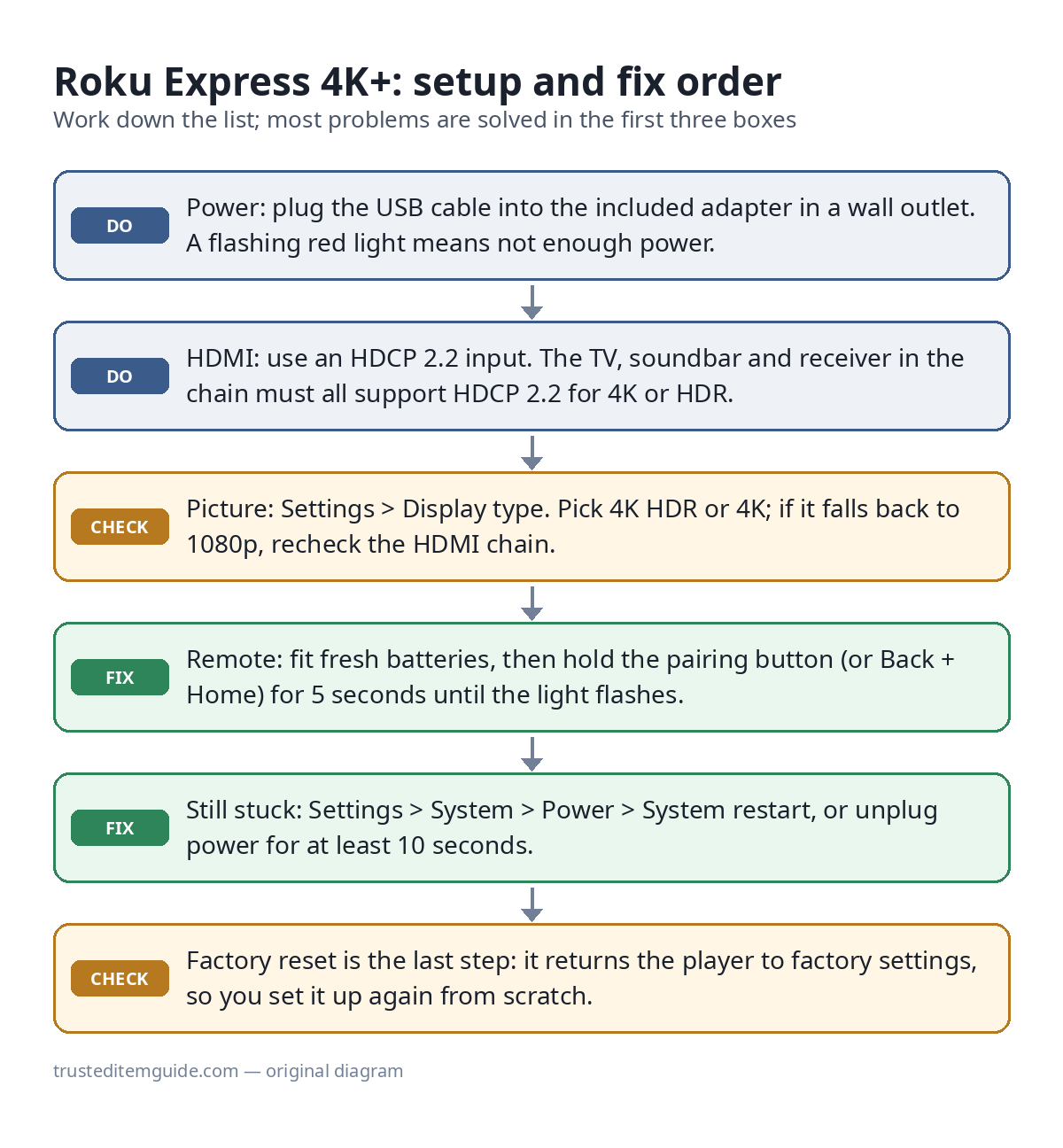
Setup checklist (the steps that prevent most problems)
Roku’s support articles for this player point to the same few causes behind nearly every complaint. Getting these right at setup saves a lot of troubleshooting later:
- Power it from the wall. Connect the USB power cable to the player and plug the included adapter into an outlet. Roku specifically says that if the player’s light flashes red, you should switch to the included adapter instead of the TV’s USB port.
- Choose an HDCP 2.2 HDMI input. 4K and HDR only work when every device in the HDMI path supports HDCP 2.2: the TV input, and any soundbar or AV receiver the signal passes through. Not every input on a 4K TV qualifies, so check the labels or the TV manual.
- Use the included cable. Roku calls for a Premium High Speed HDMI cable for 4K HDR, which is what ships in the box.
- Pair the remote. Remove the battery tab; the remote pairs with the player and is then set up to control your TV’s power, volume and mute.
- Connect to the network and activate. Activation is done with an email link or a QR code. Roku states plainly that it never charges activation or support fees; websites or phone numbers asking for one are scams.
- Confirm the picture mode. Go to Settings > Display type. If the player could not detect HDCP 2.2 during setup, it will have picked 720p or 1080p instead of 4K or 4K HDR.
Troubleshooting table
This table condenses Roku’s help articles on setup, HDCP 2.2 and 4K HDR, remote problems, system restart and factory reset into one place. Menu names can change between Roku OS versions.
| Symptom | Likely cause | What to do |
|---|---|---|
| Light flashes red, or the player restarts on its own | Powered from a TV USB port that cannot supply enough current | Use the included adapter in a wall outlet |
| No signal or a blank screen | Wrong TV input or a loose HDMI connection | Select the right input with the TV’s own remote and push the player firmly into the HDMI port |
| No 4K or 4K HDR option; stuck at 1080p | An input, soundbar or receiver in the chain without HDCP 2.2 | Connect the player directly to an HDCP 2.2 input on the TV, try another HDMI cable or input, then set Settings > Display type again |
| “HDCP Error Detected” when playing 4K or HDR | The same HDCP 2.2 problem, found at playback | Same fix as above; take the receiver out of the chain to test |
| Dolby Vision title plays without Dolby Vision | The player does not support Dolby Vision | Expected behavior; you get another HDR version (HDR10 or HDR10+) where the service offers one for that title |
| Remote does nothing | Weak batteries or lost pairing | Remove both batteries, press any two buttons, refit fresh batteries; unplug the player for 5 seconds; then hold the pairing button (or Back + Home if there is none) for 5 seconds until the light flashes |
| Frozen menu or app | Software hang | Settings > System > Power > System restart, or unplug power for at least 10 seconds |
| Nothing else works | Corrupted settings | Factory reset: Settings > System > Advanced system settings > Factory reset, or hold the physical reset button for about 10 seconds with the player on |
Roku’s remote article also gives a quick way to tell remotes apart: a voice remote has a microphone or magnifying-glass button, while a simple remote has neither and uses infrared, so it needs a clear line of sight to the player.
Pros and cons
Strengths
- Native 4K streaming at up to 60 fps for a genuinely budget price
- Supports HDR10, the scene-by-scene HDR10+ format, and HLG
- Mature, neutral Roku OS with near-complete US app coverage and strong universal search
- Voice Remote includes TV power and volume control, reducing remote clutter
- Bundled premium HDMI cable and power adapter mean no extra purchases to get started
- The Roku Channel adds a large library of free, ad-supported viewing
Limitations
- No Dolby Vision support (HDR10/HDR10+ only)
- Wi-Fi 5 rather than Wi-Fi 6, so placement near the router matters more
- Standard remote lacks a headphone jack, hands-free voice, and remote finder
- Puck-style box needs a spot near the TV rather than tucking behind it like a stick
- Being a previous-generation model, availability can be hit or miss
Who it’s for (and who should look elsewhere)
The Express 4K+ is a natural fit for anyone with a 4K TV whose built-in software is slow, cluttered, or missing apps, and who wants a simple, low-cost fix. It is also a strong pick for less tech-savvy households, second TVs, guest rooms, and anyone who values Roku’s straightforward, ad-light interface over a more aggressively branded platform.
Buyers who want the best possible HDR image should look elsewhere, because the missing Dolby Vision support is the clearest reason to spend more. The obvious cross-shop is the Amazon Fire TV Stick 4K, which adds Dolby Vision, Dolby Atmos, and newer Wi-Fi 6 in a stick form factor, at the cost of a more Amazon-centric interface; our Roku Express 4K+ vs Fire TV Stick 4K comparison puts the two side by side. Within Roku’s own range, the Streaming Stick line and the Roku Ultra step up to Dolby Vision, faster Wi-Fi, and, on the Ultra, extras like an Ethernet port and a finder-equipped remote. For a wider comparison across brands, see our roundup of the best streaming devices for home entertainment in 2026.
Frequently asked questions
Does the Roku Express 4K+ support Dolby Vision?
No. It supports HDR10 and HDR10+ but not Dolby Vision. On most services, Dolby Vision titles also offer an HDR10 or HDR10+ stream, so you still get a high-dynamic-range picture, just not in Dolby’s format. If Dolby Vision is a priority, consider a Roku Streaming Stick, the Roku Ultra, or the Fire TV Stick 4K instead.
Do I need a 4K TV to use it?
No. The player also outputs 1080p and 720p, so it works with older HD televisions and simply streams at the highest resolution your TV supports. That said, its main advantage over the cheaper HD Roku Express is the 4K and HDR10+ capability, which only pays off on a compatible 4K HDR set.
Can the remote control my TV’s power and volume?
Yes. The bundled Roku Voice Remote has dedicated TV power and volume buttons plus a microphone for voice search. It does not, however, include a headphone jack for private listening; for that you can use the private-listening feature in the Roku mobile app with your own headphones.
How is it powered?
It is powered over USB and includes a power adapter and cable in the box. Use the adapter in a wall outlet: Roku’s own setup article says a flashing red light means you should stop using the TV’s USB port and switch to the included adapter.
Do I have to pay to activate a Roku?
No. Activation uses an email link or a QR code shown during setup, and Roku states that it never charges activation or support fees. Sites or phone lines asking for an activation payment are scams.
Does it use the latest Wi-Fi standard?
It uses dual-band 802.11ac (Wi-Fi 5) rather than Wi-Fi 6. For most homes that is perfectly adequate for 4K streaming, but keeping the player within good range of the router helps avoid buffering, particularly when many devices share the network.
Bottom line
The Roku Express 4K+ remains one of the easiest ways to add fast, native 4K HDR streaming and the well-liked Roku interface to almost any television for a small outlay. Its compromises are clearly drawn: no Dolby Vision, Wi-Fi 5 instead of Wi-Fi 6, and a standard remote without private listening or a finder. If none of those are dealbreakers, it is a sensible, no-fuss upgrade, especially when it can be found at clearance pricing. Buyers who want Dolby Vision and the newest wireless will be happier stepping up to a higher-tier Roku or the Fire TV Stick 4K.